← All guides
Nutrition
Planned Nutrition and What You Ate: Keep Both Views Useful
Understand personal portions, future meal estimates and missing nutrition values, then keep planned meals separate from what you actually log.
5 min read · Grocerplan editorial team
Updated November 3, 2026
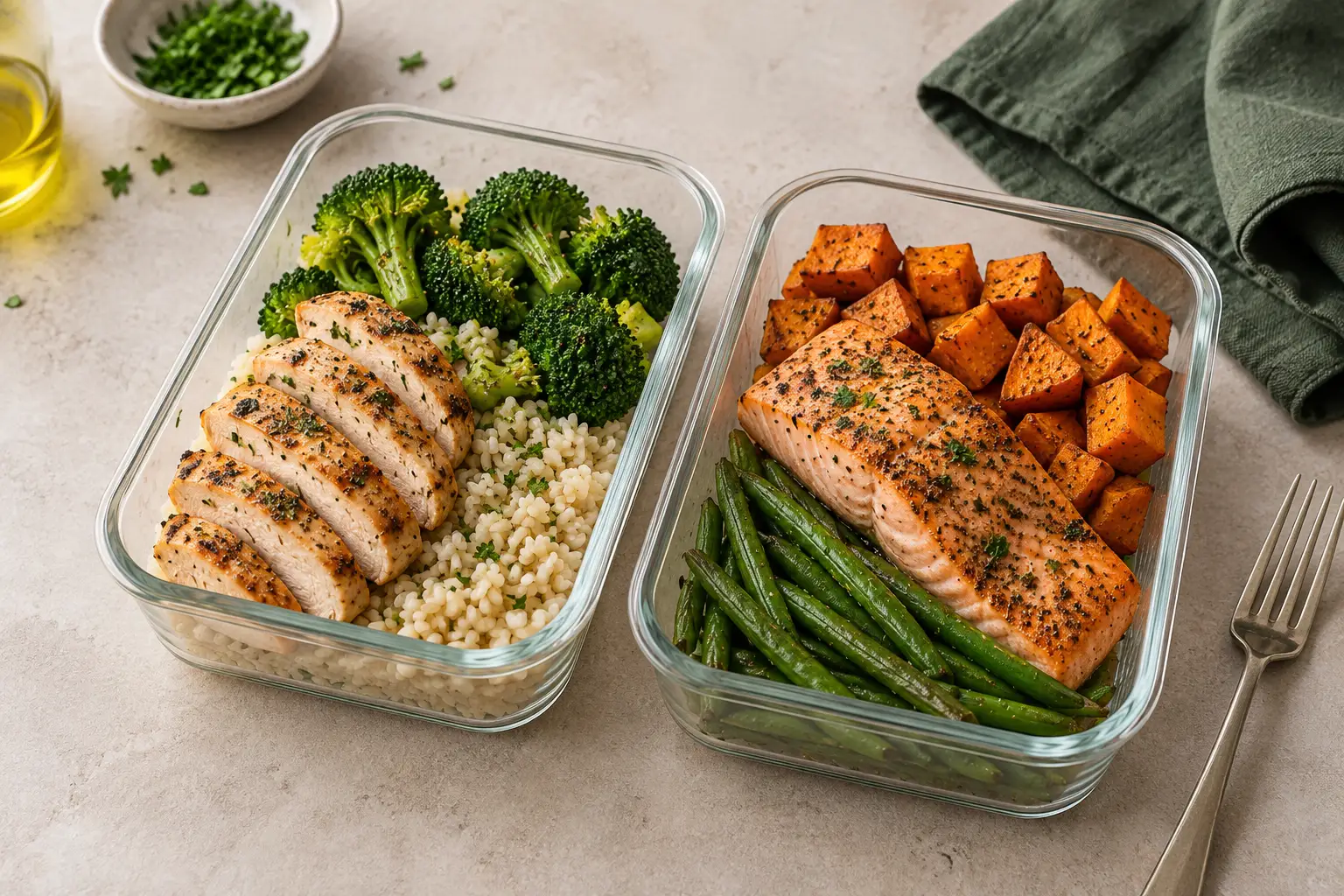
AI-generated editorial illustration; ingredients and serving sizes are illustrative.
A meal plan answers “What might I eat?” A food diary answers “What did I record eating?” Both can be useful, but they should not be confused. Adding tomorrow's dinner to a calendar does not mean you ate it, and a blank diary does not mean you ate nothing.
Grocerplan keeps Planned meals and Logged meals separate in its optional nutrition workspace. Use the planned view to review personal portions and available recipe estimates. Use the logged view when you choose to record food you actually ate. You can plan meals and shop without turning this workspace on.
Start with one planned day
Open Nutrition while signed in. If you want to use the workspace, choose Enable my private nutrition workspace. You do not need to enter body measurements or set a weight-loss goal to begin.
Choose a date and look at the planned meals for that day. The summary covers calories, protein, carbohydrates, fat, fiber and sodium when values are available. Read the number of meals with values beside each total: it tells you how much of the plan that number represents.
If dinner moved to another day or you removed a recipe, update the saved meal plan, then return to Nutrition to review the revised planned view. A meal idea without a date is not yet part of a particular day's estimate.
Keep personal portions separate from household groceries
A recipe for several people and your own planned portion are different quantities. The nutrition workspace starts with one personal serving for each planned meal unless you have saved a different personal portion. Edit my portions adjusts the personal estimate for a saved recipe; it does not increase or decrease everyone else's groceries.
For example, preparing four recipe servings for a household does not mean each person plans to eat four servings. If you intend to eat a different portion, review that portion in Nutrition instead of using the household shopping amount as your personal intake.
Packaged-food labels have another serving basis to check. The FDA explains that serving size is the basis for the label's nutrition information, not a recommendation for how much to eat. A package can contain several servings. Match the amount you record to the relevant label serving, and do not assume one package always equals one serving.
Treat unknown values as missing information
A recipe may have calories and protein but no usable fiber or sodium value. Another meal may have no nutrition estimate at all. Grocerplan leaves those values Unknown and marks totals as partial when some meals lack that nutrient.
A partial protein total can still describe the known recipes, but it cannot describe all the protein in the entire day. Adding an unknown meal should not be interpreted as adding zero nutrition. Likewise, removing a meal with missing values can change the plan even if a displayed numeric total does not move.
Check the recipe, serving basis and actual ingredients before relying on an estimate. Brands, package formulations and your modifications can differ from the original recipe. The FDA's label-reading guide is useful when comparing the products you actually have. Do not fill an unknown field with a guessed number merely to make the summary look complete.
Look ahead one saved week at a time
The Your planned week section lets you select days and see their planned meals. Use Choose date to review another date, including a future week. This view describes meals already saved to the dated plan; it does not forecast meals you have not scheduled or invent values for future grocery drafts.
For a longer horizon, review the weeks you have planned in manageable chunks. Check whether the meal choices still fit your schedule, whether portions need adjusting and which days remain incomplete. Return to the planner when you want to add, move or remove a meal, then reopen Nutrition to review that week.
The current personal view includes shared meals and, when available, the household's primary-member plan. It does not combine every household member's personal plans into one person's intake. Check that scope before comparing the summary with your own optional goals.
Log food after you eat it
For today or an earlier date, Log this meal opens a planned meal for review before saving it in your diary. Check what you actually ate, adjust the serving amount and leave unavailable nutrient fields blank. You can also choose Log food or a meal for a manual entry.
The diary is a record of the entries you choose to save, not an automatic record of everything you consumed. Logging is unavailable for future dates because those meals still belong in the plan. Later, you can edit or delete a diary entry without removing the meal from your calendar or grocery list.
Use Logged patterns for a seven- or 28-day view. For each nutrient, a day enters the average only when every logged entry that day has a known value. The view shows how many days qualify. Days without entries are not zero-intake days; days with only dinner recorded are not necessarily complete days of eating. Read that coverage alongside the average before drawing conclusions.
Choose the amount of tracking that is useful
Custom nutrition goals are optional and entered by you. They are reference values alongside your estimates, not targets automatically prescribed by Grocerplan. You can leave goals blank and use the workspace simply to understand portions and the meals you have planned.
The workspace keeps its goals, personal portions and diary out of shared grocery lists. Clear this nutrition workspace removes those workspace records and turns it off; the confirmation explains that meal plans, grocery lists and older profile information remain. Review that distinction before clearing anything.
Try reviewing one planned day. If you need a meal to schedule, browse dinner recipes, then check the chosen recipe and its serving basis.
Grocerplan may earn a commission when you check out on Instacart. Planning estimates do not establish the contents of a retailer order.
Sources
•
FDA: Serving Size on the Nutrition Facts Label, read November 3, 2026.
•
FDA: How to Understand and Use the Nutrition Facts Label, read November 3, 2026.
See the information behind your meals
Sign in and choose whether to enable nutrition tracking. Planned estimates and meals you log stay separate.
Open nutrition planning →